※ KANN compatible memory card guide ※
KANN supports up to 768GB capacity with built-in memory and microSD, SD slot.
KANN is equipped with 64GB high-speed memory.
The microSD slot also allows up to 256GB of memory,
Supports up to 512 GB of memory via the SD slot.
With both internal memory and memory slots,
KANN can store up to 768GB of source files.
The specifications of the memory card that has been confirmed as normal in KANN products are as follows
We recommend that you purchase a memory card that meets the following specifications.
▶ Memory card size: microSD, SD
▶ Manufacturer: SanDisk, Transcend, Samsung
▶ Capacity: microSD up to 256GB
SD up to 512GB
※ We recommend using SanDisk for 512GB SD card.
- Precautions when using memory card -
1. A memory card with a capacity of 64 GB or more is exFAT as the default file system.
You will need to use a separate program to format it with the FAT32 file system.
2. If you are purchasing an incompatible memory card, the memory card or
the files in the memory card may not be recognized properly or malfunction may occur.
1. AK380 Cradle is available for AK380 v1.14 or later,
AK300/320 is available for v1.00 or later firmware version.
2. When Device is connected to the cradle and the clamp is raised and activated (See below picture)
It outputs to the XLR balance of the cradle,
and it does not sound even when connecting earphone to 3.5 terminal and 2.5 terminal of AK380/A320/AK300 main body.
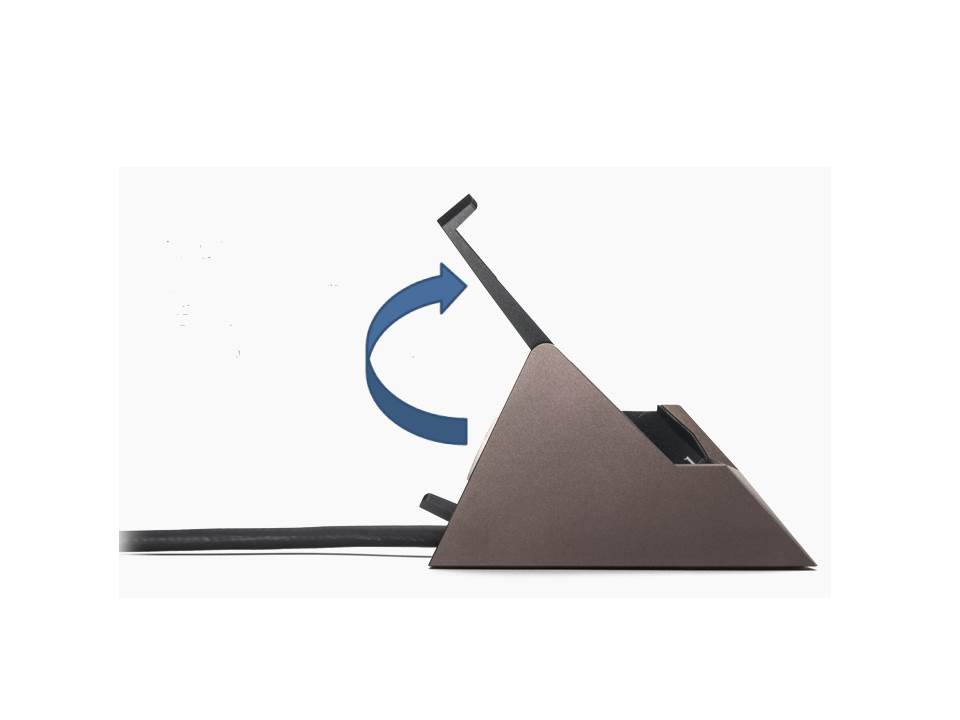
3. When using the AK380 Cradle as a USB DAC, the XLR balanced output will not be out.
- In the AK100 II / AK120 II / AK240 / AK100 II_x_HCC / AK380 products
You can select the album art as the desired image when ripping with connecting AK CD-RIPPER.
(It is connected to Wi-Fi and can be changed even if CD album art is automatically displayed in Grace Note.)
You can edit it by touching the red part of the photo on the ripping screen.
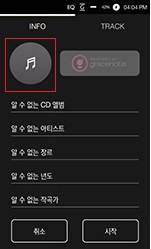
- Image files can be selected only in jpeg / png files in the internal repository - AlbumArt folder,
jpeg / png File size should be less than 2MB.
※ This function is available from:
[AK100 II / AK120 II / AK240 Firmware v1.28]
[AK380 Firmware v1.17]
[AK100 II_x_HCC Firmware v1.04].
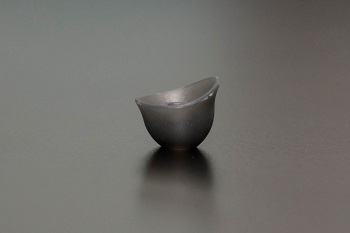
How to fasten silicon tips in the units of [AK T8iE/AK T8iE MKII]
1. The picture below is a silicon tip.
2. Please install it as shown below.
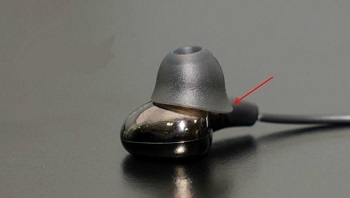
That is the right direction of silicon, please enjoy your earphone!
Address: DM Solution, Ober der Roeth 4, 65824 Schwalbach, Germany
Email: info@astellkernservice.de
Tel : +49 (0) 6196 / 953 573 0
Typical working time:
Monday to Friday 09:00 ~ 17:00 Lunch time 12:00 ~ 13:00
[Tips]
- When the amplifier is on, the AK380 will not sound,
Line out / optical output / USB DAC functions will not work.
- To use this function, remove the amplifier and use it.
- When using the following connection while using the amplifier connected to the AK380
It is adjusted to the basic volume level of the amplifier for protection of Earphone / Headphone / Ear
Connection as below:
1. Activation of Amplifier
2. Change of High Gain / Low Gain
3. When removing earphones / headphones connected to the amplifier
* The basic volume of the amplifier is 50.
When the volume is over 50, if you do above three actions, volume will be adjusted automatically.
When deactivate the amplifier, regardless of volume level,
it maintains the existing volumes when the earphone / headphone is connected to amplifier.
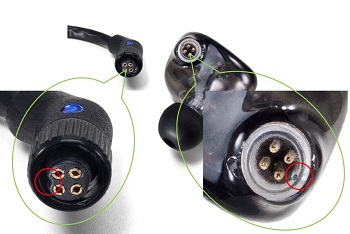
[4 pin connection method]
- Align the unit with the groove of the cable as shown in the figure below and fix the connector of the cable part by turning it.
- If you force it to fit the groove, it may damage the unit or cable connector part.
[USB DAC function]
This is a function that can be used as a "USB sound card" by connecting the AK product to PC USB.
- After connecting the product to PC, select [USB DAC] to connect to USB DAC mode.
- The USB DAC function is automatically installed and recognized through the driver built into the OS.
- If the device does not install properly, check the device driver (automatically search) through the Device Manager.
- If the device is installed but no sound is output, delete the device through Device Manager
and connect the product to the PC again and confirm.
- If your PC already has a sound card, change the default device through the control panel,
Sound is played only when you select the AK product as the device to output the sound through the playback program setting.
[Check path]
※ Windows XP:
Control Panel - Sounds and Audio Devices - Change Sound Playback default device to "USB DAC" in the ‘Audio’ tab.
※ Windows vista/7/8/10:
Control Panel - Hardware and Sounds - Sounds - Audio Devices manager - Select the "USB DAC" in the ‘Play’ tab,
and then select as “set as the Default device”
[USB DAC support specification]
Please refer to the each product manual.
[Cautions]
- If the support format is exceeded, the sound will not play.
- When the USB DAC is connected, the volume control is unavailable when the LCD is off.
- When connecting USB DAC, previous, play and next keys are unavailable.
- If the USB usage is high or the PC is slow, the playback sound can be cut off
- When video is played back, depending on the original and output quality, the sync may not fit.
- Optical output (S/PDIF) is unavailable during USB DAC connection.
- Volume cannot be adjusted via the Windows volume control.
- You can adjust the sound volume through the volume of the program you are using or volume key
[AK 1st generation model: AK100 / AK120 / AK JR]
Supported codecs: WAV, FLAC, AIFF, ALAC, (Not MP3)
Conditions: The sample rate, bit, and codec of the current playback song and the next playback song must be the same.
[AK model except for 1st generation. (Android OS)]
Supported codecs: All playback supported formats
Conditions: The sample rate, bit, and codec of the current playback song and the next playback song must be the same.





